 cadraTV
Getting started on TV
Everything is done with the arrows and the OK button on the remote.
The screenshots below show the French interface; the app displays the same screens in English.
1. Add your source without typing
On first launch, the Welcome to Cadra TV screen offers Link my Cadra Account (recommended), Add a source on this TV, or Continue without an account. Typing a long playlist address with the remote is tedious. The easiest way is to enter it on your computer or phone, then link the TV:
On your phone or computer
Open cadra.tv/compte, sign in with your email address, then My sources → Add: paste the M3U address or your Xtream Codes credentials.
On the TV
On first launch, choose Link my Cadra Account (recommended): the QR code appears right away. Later, open Settings (the icon at the bottom of the left menu). In the Account and profiles section, choose Cadra Account → Link this device. A QR code and a 6-character code appear.
Scan and confirm
Scan the QR code with your phone camera, or open cadra.tv/lier and type the code. Confirm with Link: your sources reach the TV in a few seconds.
No account? Enter your source directly on the TV: Add a source button at the top of Settings (or on the home screen while there is no source), choose M3U playlist or Xtream Codes, fill it in with the on-screen keyboard, then Save and import.
2. Find your way around
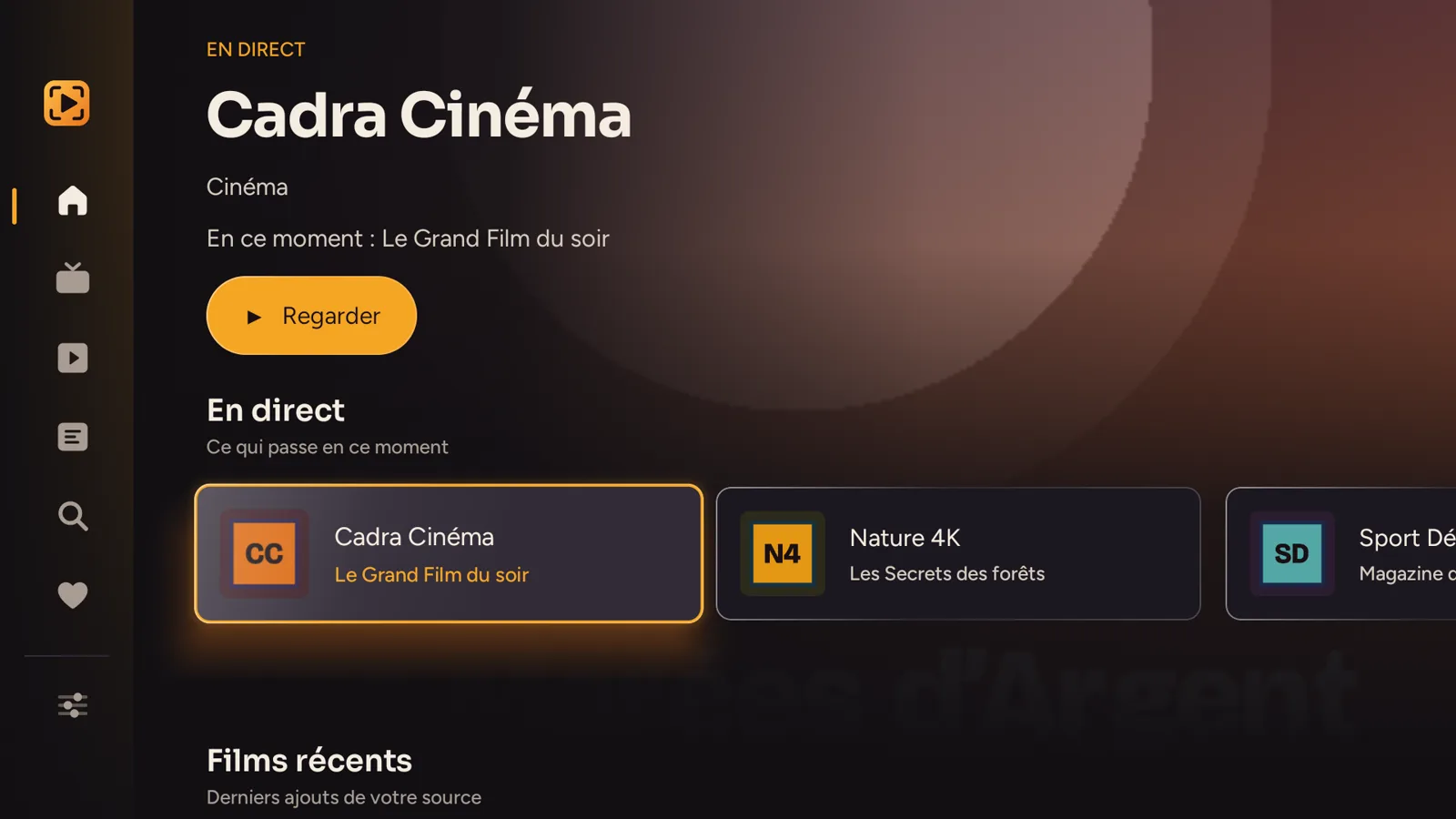
The left menu gives access, from top to bottom, to Home, Channels, Movies & Series, Guide, Search, Favorites and, at the very bottom, Settings. To open it, press ← until you reach the left edge of the screen. From the player, multiview or a details page, press Back first.
The selected item always has an amber frame around it: that is what the OK button will open.
3. Watch
On the home screen, the Live now row shows what is on your channels right now. Select one and press OK, or ▶ Watch at the top of the screen (the button becomes Resume for a title you have already started). The Back button on the remote takes you back where you were.
4. The program guide
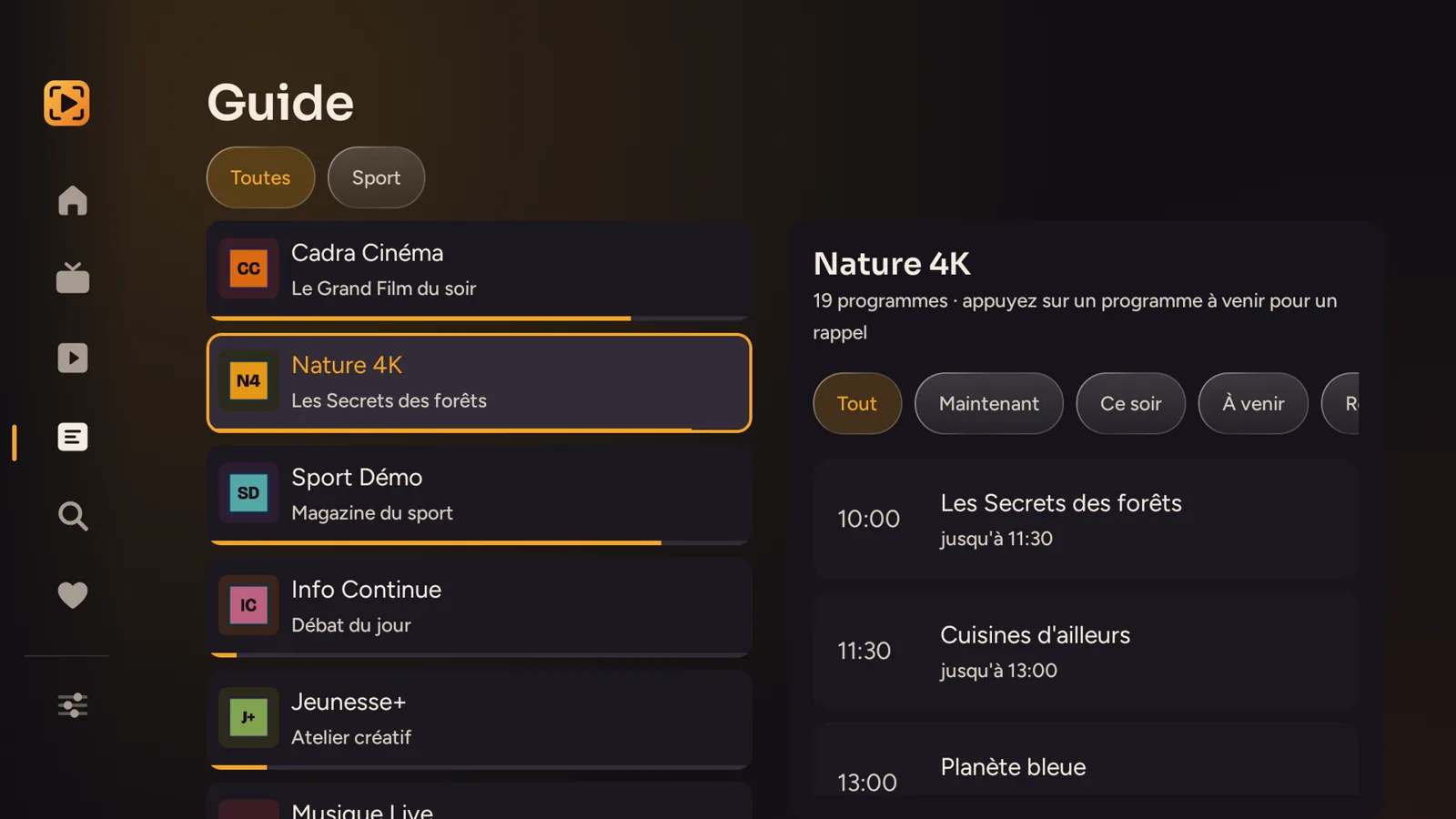
On the left, your channels and what they are showing, with a bar for the progress of the current show. On the right, the full schedule of the selected channel, sorted by All, Now, Tonight, Upcoming and Replay. Select an upcoming show to set a reminder. Replay gives access to catch-up for past shows, if your provider archives them.
5. Movies and series
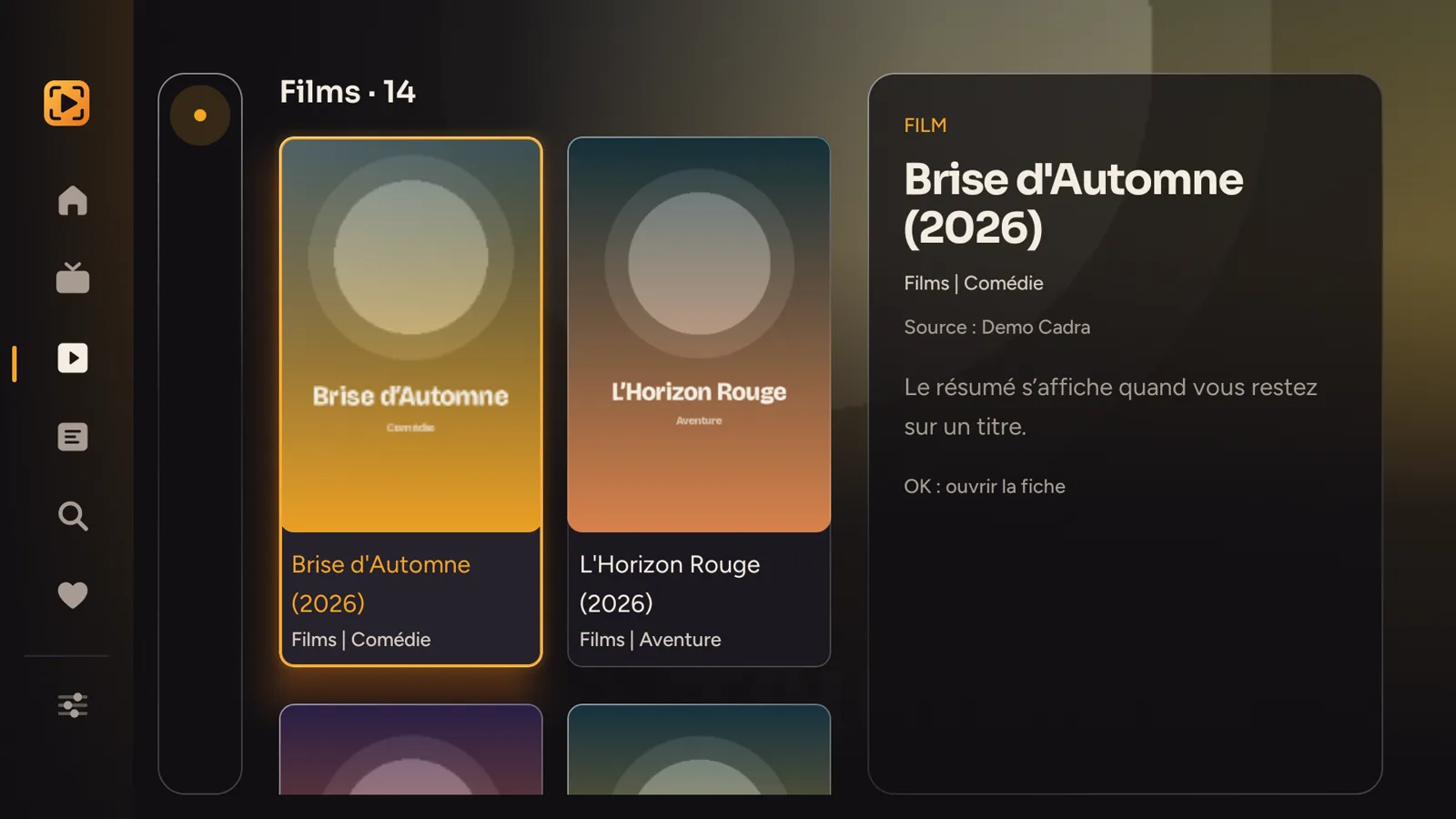
Movies and series are shown with their posters. Stay on a title for a moment: its synopsis appears on the right. OK opens the details page. A movie or episode stopped halfway resumes where you left it, even if you started it on another device linked to your account.
To remove a title from the Continue watching row on the home screen, hold OK on its tile, or press ☰, then choose Remove from Continue watching. The title also disappears from your other linked devices. To clear everything: Settings → Clear this profile's history.
Binge-watch a series
- “✓ Watched”: a movie or episode watched to 90% is marked Watched and leaves Continue watching, on all your linked devices. Hold OK (or ☰) on an episode to choose Mark as watched or Mark as unwatched.
- Next episode: at the end of an episode, a card shows Playing in 10 s, with Play now and Cancel. After three episodes without touching the remote: Are you still watching?
- Skip intro and Skip recap appear at the start of an episode when its markers are known: press OK.
- To turn them off: Settings → Preferences.
Details, ratings and trailers
The details page of a movie or series shows IMDb, Rotten Tomatoes, Metacritic and Letterboxd ratings and a Trailer button, which opens in the YouTube app. Ratings need a free MDBList key: the easiest way is to enter it at cadra.tv/compte, API keys section. It then reaches the linked TV, without typing anything with the remote.
Kids profile
Each Kids profile has its own PIN code, asked to leave the profile or open Settings, and only the chosen categories stay visible, including in search. Write down the backup code shown at creation: it helps if the PIN is forgotten.
Lists always up to date and the What's new guide
Your sources refresh on their own in the background. A title removed by your provider stays in your favorites and progress, marked Unavailable. After each update, a What's new guide presents what changed, with the settings right there. To see it again: Settings → About → What's new.
Subtitles out of sync?
During playback, open Options. If a subtitle was added or downloaded, the Subtitle delay line offers Earlier −0.5 s, Later +0.5 s and Reset to 0. Subtitles ahead of the voice: Later. Behind: Earlier. The setting does not apply to subtitles built into the video.
6. Multiview
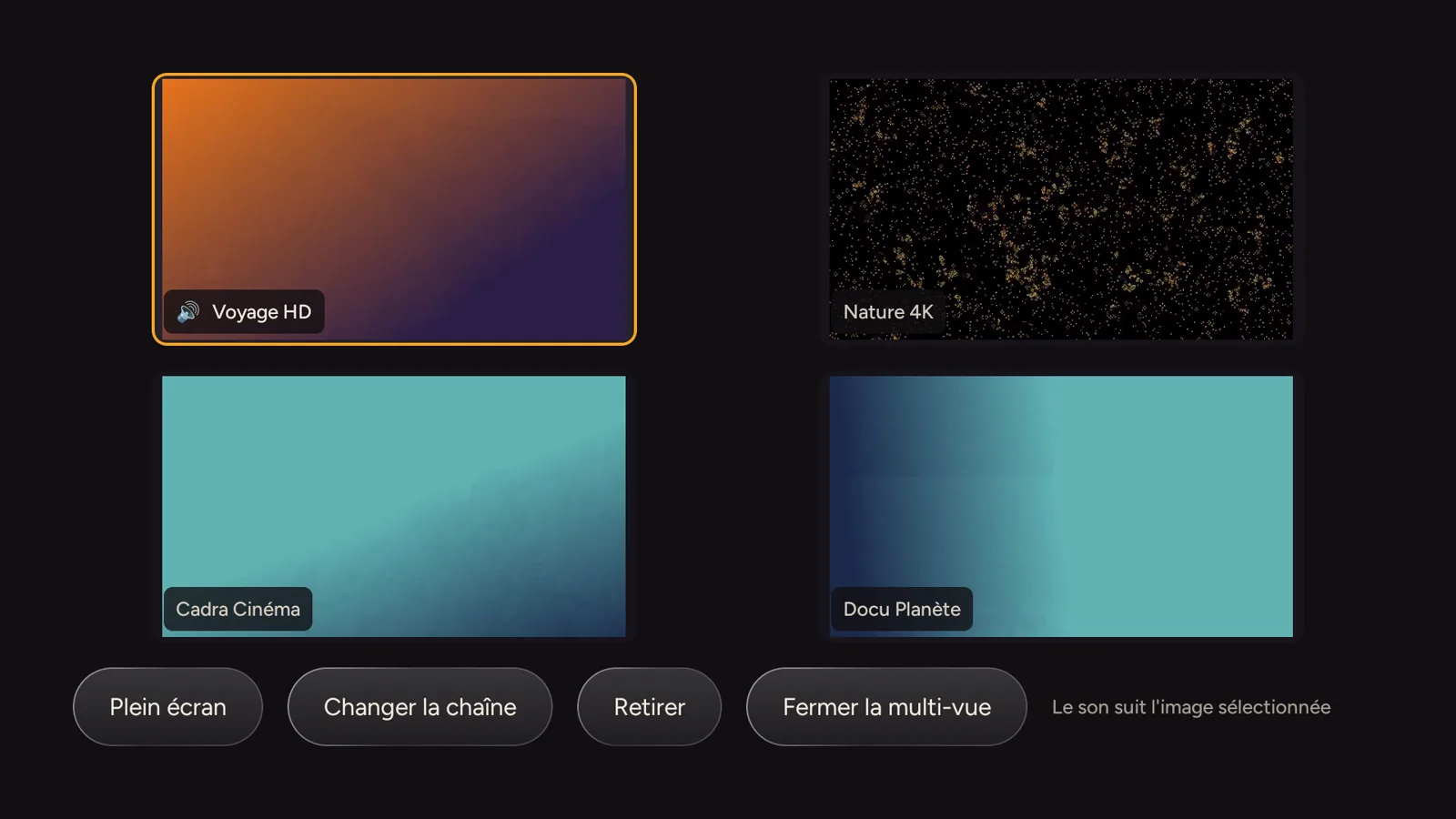
Up to four channels at once. To open it, go to Channels and select the Multiview button under the preview, on the right. Sound follows the selected picture: move with the arrows to switch sound. At the bottom: Full screen, Change channel, Remove and Close multiview.
7. Updates
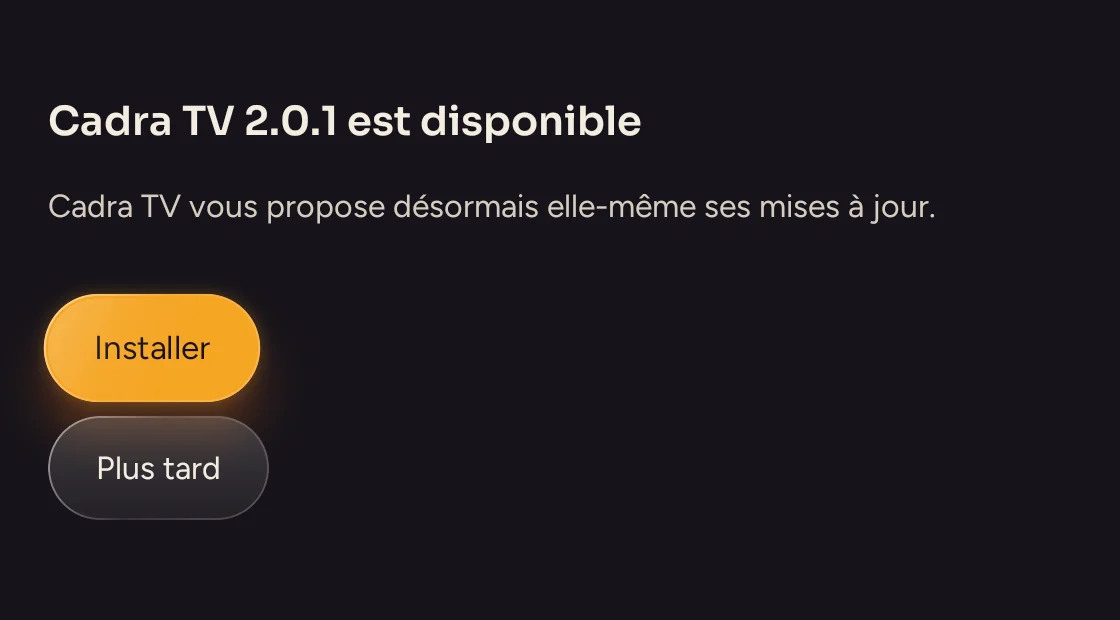
When a new version exists, Cadra TV offers it when it starts. Choose Install, then confirm on the installation screen. Your sources, favorites and progress are kept.
Still stuck?
Check the FAQ, or write to us at bonjour@cadra.tv and tell us where you got stuck.