 cadraTV
Getting started
Five minutes to get to grips with Cadra TV: from your first source to your first evening.
The screenshots below show the French interface; the app displays the same screens in English.
1. Add your source
On first launch, the Welcome to Cadra TV screen offers Link my Cadra Account (recommended), Add my playlist, or Continue without an account. Cadra TV contains no channels: it plays those of your subscription. You need the address of your M3U playlist, or your Xtream Codes credentials (server, username, password). Your provider sent them to you, often by email.
Open settings
Click Add my playlist on the welcome screen. Later, to add another source, click the ⚙ gear at the top right of the window.
Add the list
In Playlists, choose Add a playlist. Two tabs: Xtream Codes (fill in Server, Username and Password) or M3U address or file (paste the address). Click Connect and import.
Wait for the first load
A progress bar counts the entries received. A large list can have tens of thousands of channels and movies: the first time, allow a minute or two. Later loads are almost instant.
Easier with a Cadra Account. If you have already entered your source at cadra.tv/compte or on your TV, choose Link my Cadra Account (recommended). A QR code appears: scan it with your phone, or click Open in browser, then confirm. Your sources, favorites and progress arrive on their own.
2. Understand the screen
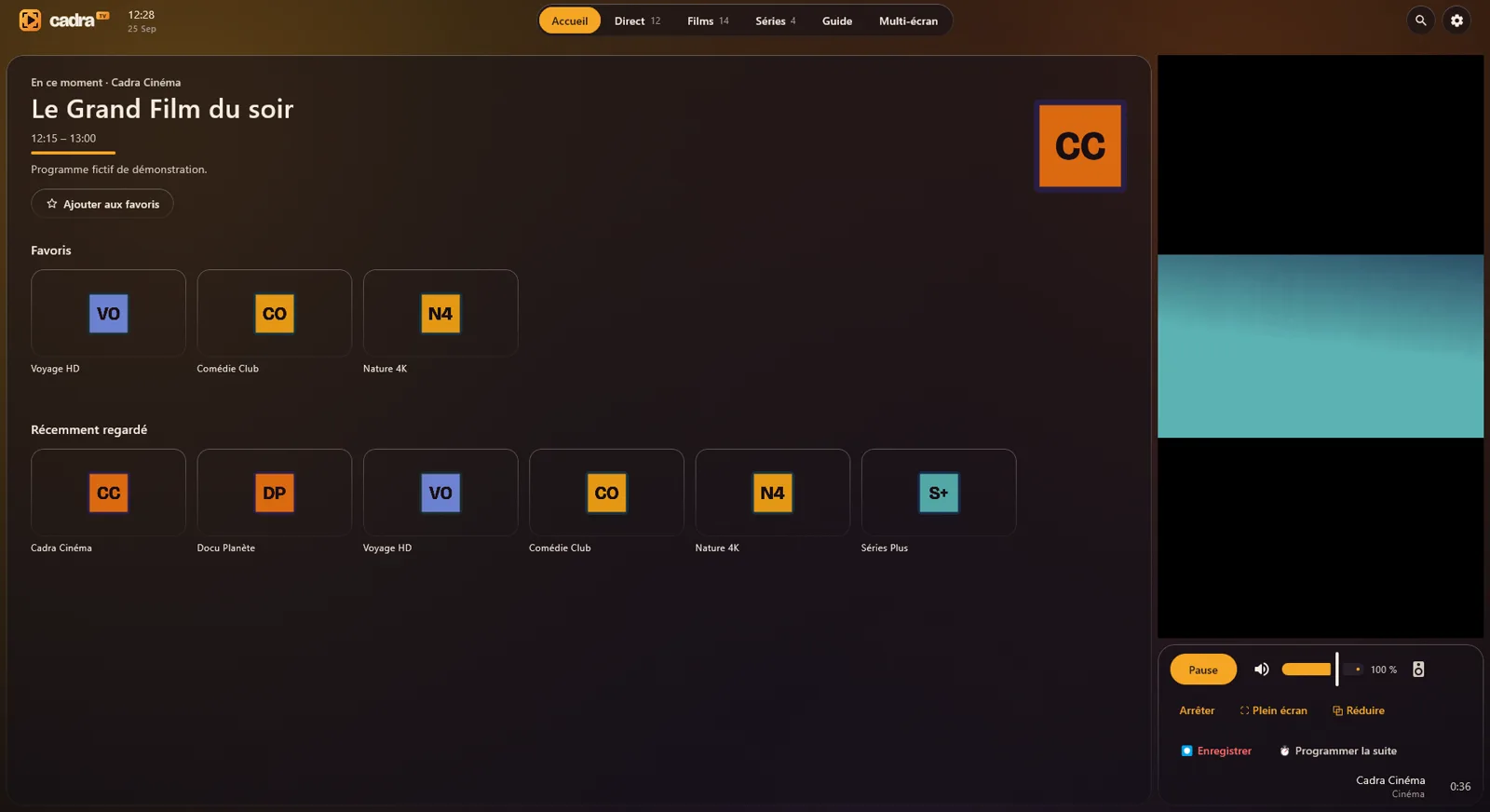
- At the top, the navigation bar: Home, Live TV (the channels), Movies, Series, Guide and Multiview. The number next to each section shows how many items your source contains.
- On the left, the content of the chosen section. In Live TV, Movies and Series, the left column lists your provider's categories, with a field to filter them.
- On the right, the player always stays visible: you keep watching while you look for something else.
- The magnifier, at the top right, searches everywhere at once: channels, movies and series.
3. Watch a channel or a movie
One click on a channel, movie or episode plays it in the player on the right. Under the picture:
- Play / Pause and volume;
- Full screen: the picture fills the whole screen. Move the mouse to show the controls and, for a movie or episode, the progress bar (time elapsed on the left, time remaining on the right): click it to move. Esc to go back;
- Minimize: the player becomes a small window;
- Stop playback;
- Record the current show, and Schedule next to record the following one.
To switch channels, use the ↑ and ↓ arrows when the video is selected, or Page Up and Page Down at any time.
4. The program guide
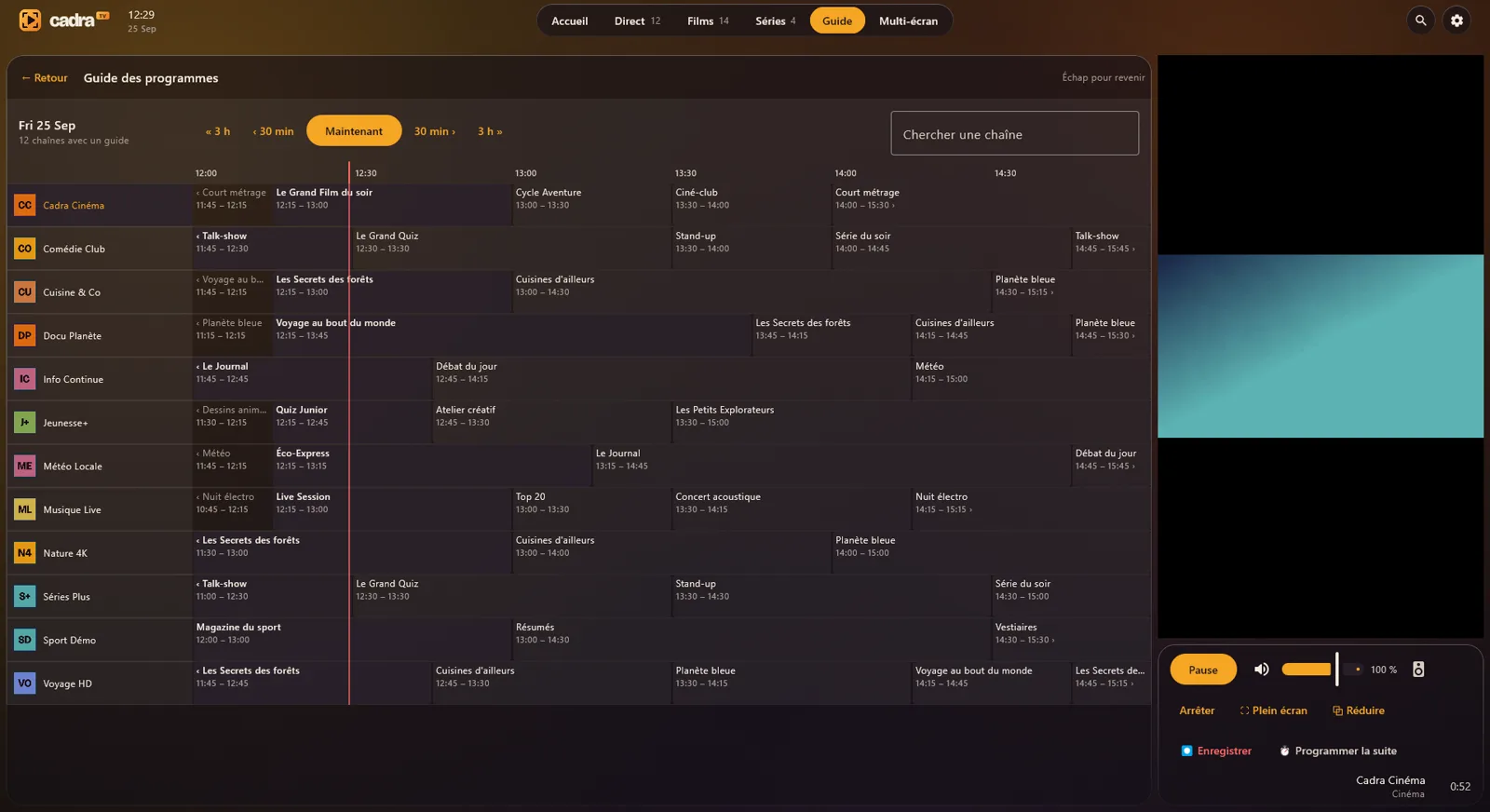
The Guide section shows the time grid of your channels. The red line marks the current time. The « 3 h, ‹ 30 min, Now, 30 min › and 3 h » buttons move the grid in time, and Search channels filters the list. Click a current show to watch it; on a past show, catch-up plays it if your provider supports it.
The guide is empty? Cadra TV finds the guide on its own from your source: in Live TV, click Download next to TV guide, in the left column (the button then becomes Refresh). If it stays empty, your provider does not publish one. Loading a large guide for the first time takes a minute.
5. Favorites and resume
- On the details page of a channel, movie or series, ☆ Add to favorites puts it in the Favorites row of the home screen.
- A movie or episode stopped halfway appears in Continue watching: one click, and playback restarts where you left it.
- The channels you just watched are in Recently watched.
- To tidy up, right-click a tile on the home screen, then Remove from Continue watching or Remove from Recently watched. An Undo banner stays for a few seconds in case of a mistake. The Clear button, in the left column, erases everything at once. With a Cadra Account, removed progress also disappears from your other devices.
Binge-watch a series
- “✓ Watched”: a movie or episode watched to 90% (or within 2 minutes of the end) is marked Watched and leaves Continue watching, on all your linked devices. Right-click: Mark as watched or Mark as unwatched.
- Next episode: during the end credits, a card offers the next episode, with Playing in 10 s, Play now and Cancel. After three episodes without touching anything, Cadra TV asks Are you still watching?. The card only appears if the episode was started from the series details page.
- Skip intro and Skip recap show for a few seconds at the start of an episode, when its markers are known.
- To turn either off: Settings → General → Playback.
Details, ratings and trailers
A click on a poster opens the movie details: synopsis, trailer, Play or Resume, and IMDb, Rotten Tomatoes, Metacritic and Letterboxd ratings. A double-click plays the movie right away. For series, the details appear at the top of the episode list.
Ratings need a free MDBList key: Settings → Features, where a guide explains how to get one, and Test key checks that it works. With a Cadra Account, you can also enter it at cadra.tv/compte: it reaches all your devices.
Kids profile
A Kids profile is protected by a 4-digit PIN code, asked to leave the profile or to open Settings or Playlists. You choose the allowed or blocked categories: they also disappear from search. Write down the backup code shown at creation: it helps if the PIN is forgotten.
Lists always up to date
Your playlists refresh on their own in the background (frequency adjustable in Settings). If your provider removes a title, your favorites and progress stay visible, marked Unavailable.
The What's new guide
After each update, Cadra TV presents what's new in a few cards, with the settings right there. To see it again: Settings → About → What's new.
6. Multiview
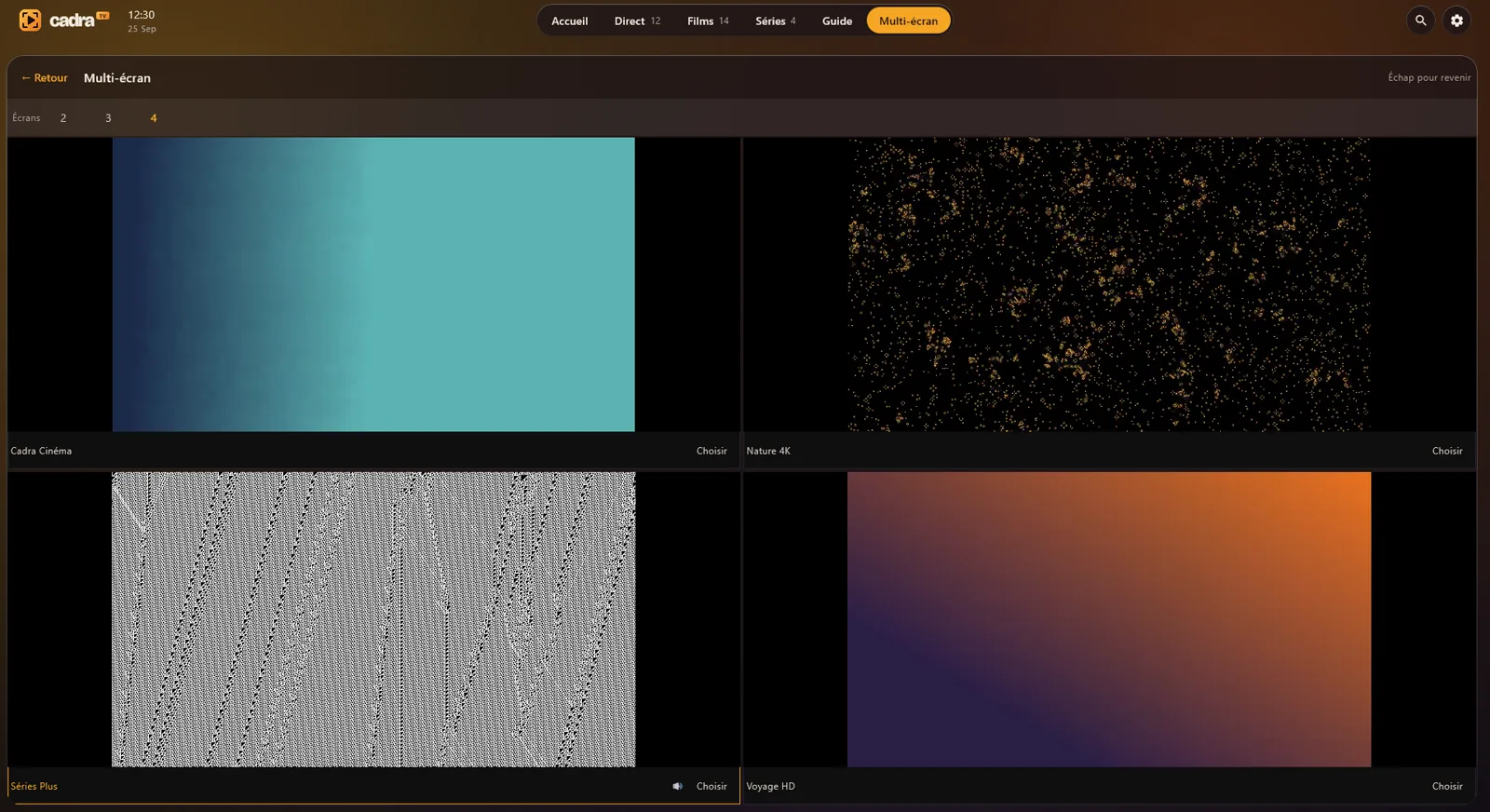
In Multiview, choose 2, 3 or 4 screens, then Choose under each box to put a channel in it. Sound follows the selected picture: click a box to hear it.
7. Keyboard shortcuts
The media keys on the keyboard (play, next and previous track) also work.
Still stuck?
Check the FAQ, or write to us at bonjour@cadra.tv: tell us where you got stuck, it helps us improve the app.